> For the complete documentation index, see [llms.txt](https://docs.gapvelocity.ai/blackdiamond-studio-or-mobilize.net/llms.txt). Markdown versions of documentation pages are available by appending `.md` to page URLs; this page is available as [Markdown](https://docs.gapvelocity.ai/blackdiamond-studio-or-mobilize.net/blackdiamond-studio-documentation/bds-portal/creating-my-first-project/4.-connect-to-snowflake.md).
# 4. Connect to Snowflake
This step is optional. Connect to your database to run queries or deploy tables, views, functions, and procedures. The database connection is not required for fixing conversion issues in the IDE.
In this step, you will be able to choose between connecting your Snowflake account now or do it later.
1. When you click on "Set up connection later." you can continue to the next step by clicking continue or clicking the next tab in the wizard.
2\. When you select "Set up connection now." you only need to provide some information in the connection form:

**1. Database Connection Name:** This name will only be used to save your connection and allow you to identify your connection in BDS.
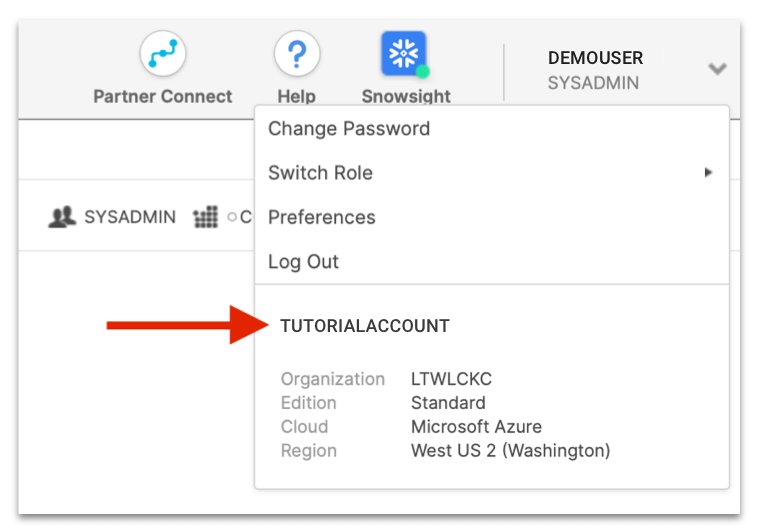
**2. Account:** The Account is the bold text you see when clicking on your Snowflake username information (found in the top right corner).
**3. Database:** The database is shown in the dropdown menu below

**4. Role:** The role is the text below your username

**5. Warehouse:** The warehouse is shown in the dropdown menu below:

6\. **Schema:** The schema is shown in the dropdown menu below:

7\. **Snowflake Credentials:** Enter your Snowflake credentials to connect to the database you have provided. Your username can be found in the Snowflake IDE top right corner.

8\. The last step is to click on the **Connect Database** button and your connection will be saved: