# Running a Streamlit App

Streamlit turns data scripts into shareable web apps in minutes. All in pure Python code. No front‑end experience required. For more information see [the Streamlit documentation.](https://streamlit.io/)

### Getting started

For this example we will be running the popular "Hello world" on a Streamlit App, to do this, we need to execute the following steps:

* Create a new "code from scratch" project on BDS, for more information about project creation see [Creating my first project](/blackdiamond-studio-or-mobilize.net/blackdiamond-studio-documentation/bds-portal/creating-my-first-project.md).

<figure><img src="/files/1aGMD6xkhKHJ2F90QHlr" alt=""><figcaption><p>Code from scratch project</p></figcaption></figure>

On the project summary of the recently created project, click on the "OPEN IDE" button to open the [Online Code Editor](/blackdiamond-studio-or-mobilize.net/blackdiamond-studio-documentation/online-code-editor.md).

<figure><img src="/files/sA22WdmD1UOsVEHG0o6G" alt=""><figcaption><p>OPEN IDE Button on project summary</p></figcaption></figure>

* Use the "New Folder" option in the [Online Code Editor](/blackdiamond-studio-or-mobilize.net/blackdiamond-studio-documentation/online-code-editor.md) to create a new folder in the workspace. Name it "streamlit\_app" and press Enter.

<figure><img src="/files/oVcyYmbI3WrC1GU9GMUF" alt=""><figcaption><p>New Folder option</p></figcaption></figure>

* After the folder is created, we need to create our python file that will contain all the code for our Streamlit App. So, click on the recently created folder and use the "New File" option to create a new file within it. Name it "hello\_world.py" and press Enter.

<figure><img src="/files/BAra0UMrgSqPQlD1XQla" alt=""><figcaption><p>New File option</p></figcaption></figure>

* Now our python file will be created and we will be able to write code on it. Click on the "hello\_world.py" file to open it in the Editor, and type the following code:

```python
# Hello world example
import streamlit as st

st.write("""
# My First App
Hello world
""")
```

<figure><img src="/files/7te4k6ybw8ReJooCLTXN" alt=""><figcaption><p>Hello world example code</p></figcaption></figure>

* Rigth-click on the "hello\_world.py" file to show the [Contextual Menu](/blackdiamond-studio-or-mobilize.net/blackdiamond-studio-documentation/online-code-editor/contextual-menu.md), and click on the "**BlackDiamond: Run Streamlit**" option.

<figure><img src="/files/6kys2JNfnE4egvWPlc5b" alt=""><figcaption><p>Run Streamlit option in Contextual Menu</p></figcaption></figure>

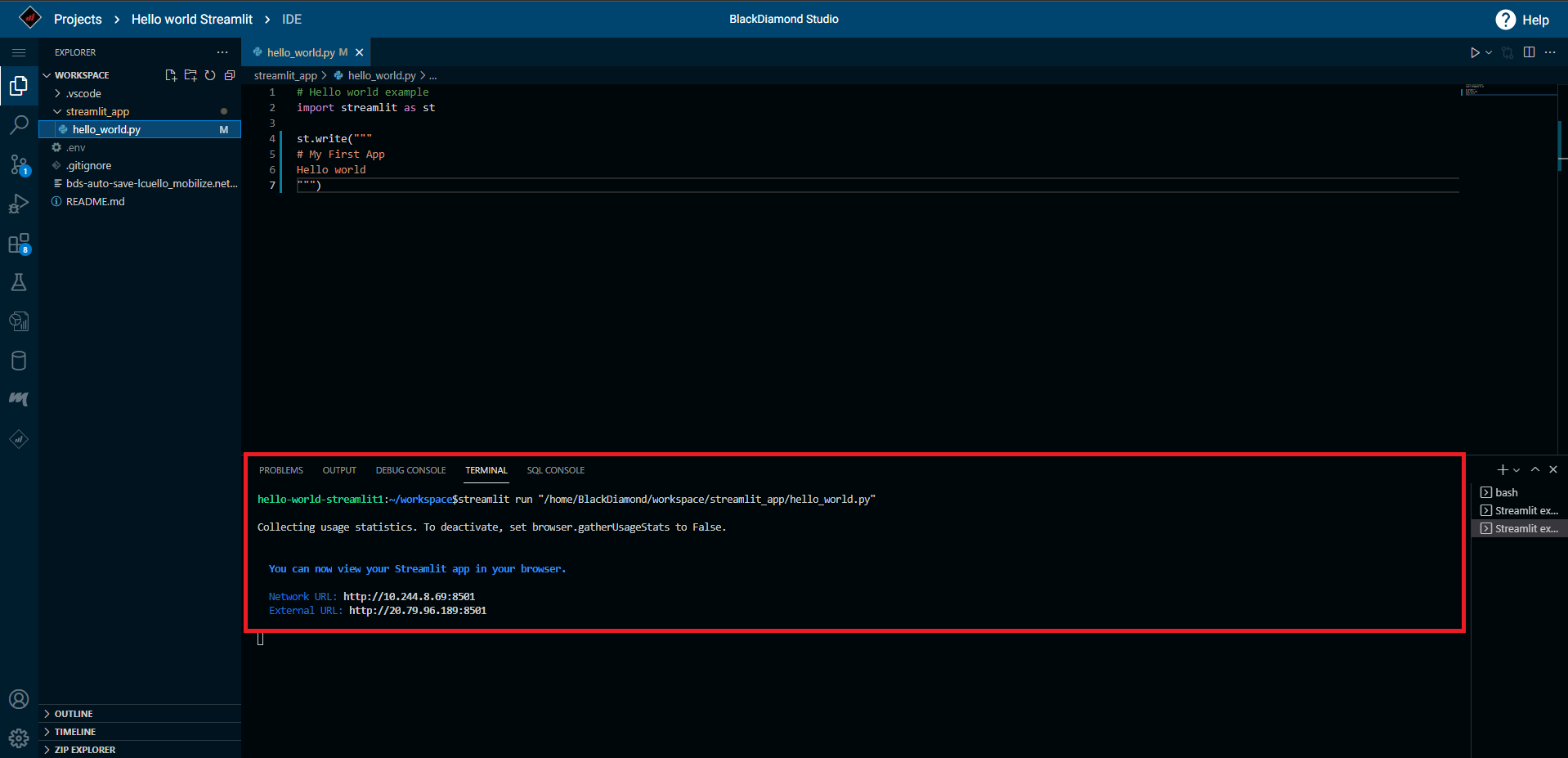
A new Terminal will be opened and the Streamlit run command will be executed, creating and sharing the Streamlit App.

<figure><img src="/files/OwHXZeI28YJ1lVgHZzDl" alt=""><figcaption><p>New terminal for Run Streamlit command</p></figcaption></figure>

After the Streamlit App is ready, a notification will be shown indicating the port used. Click on the "Open in browser" button to open the Streamlit App.

<figure><img src="/files/vkKl4Zm2G4SzvIirV8ek" alt=""><figcaption><p>Streamlit App execution notification</p></figcaption></figure>

Congrats! Now our Streamlit App is ready.&#x20;

<figure><img src="/files/nj5KTl7NClMbLsLZBQF3" alt=""><figcaption><p>Streamlit App execution</p></figcaption></figure>

Use the Streamlit App header to identify your project and the executed application.

<figure><img src="/files/9sWI3mR5dfmT5vUimOo5" alt=""><figcaption><p>Streamlit App header</p></figcaption></figure>

### Considerations

* To close or cancel the execution of the Streamlit App, go to the Terminal in the [Online Code Editor](/blackdiamond-studio-or-mobilize.net/blackdiamond-studio-documentation/online-code-editor.md) and press Ctrl + C.

<figure><img src="/files/WlfodoFi1uwQBtULvIWq" alt=""><figcaption><p>Streamlit App execution canceled</p></figcaption></figure>

* If the [Online Code Editor](/blackdiamond-studio-or-mobilize.net/blackdiamond-studio-documentation/online-code-editor.md) is inactive, the Streamlit App will be suspended as well, and the following screen will be shown:

<figure><img src="/files/lz1gQ9HsOUpJ8DMRwEvm" alt=""><figcaption><p>Inactivity screen for Streamlit App</p></figcaption></figure>

* To restart the Streamlit App, click on the "OPEN IDE" button from the inactivity screen and use the **BlackDiamond: Run Streamlit** option from the [Contextual Menu](/blackdiamond-studio-or-mobilize.net/blackdiamond-studio-documentation/online-code-editor/contextual-menu.md) again in the corresponding python file.


---

# Agent Instructions: Querying This Documentation

If you need additional information that is not directly available in this page, you can query the documentation dynamically by asking a question.

Perform an HTTP GET request on the current page URL with the `ask` query parameter:

```
GET https://docs.gapvelocity.ai/blackdiamond-studio-or-mobilize.net/blackdiamond-studio-documentation/online-code-editor/running-a-streamlit-app.md?ask=<question>
```

The question should be specific, self-contained, and written in natural language.
The response will contain a direct answer to the question and relevant excerpts and sources from the documentation.

Use this mechanism when the answer is not explicitly present in the current page, you need clarification or additional context, or you want to retrieve related documentation sections.