> For the complete documentation index, see [llms.txt](https://docs.gapvelocity.ai/blackdiamond-studio-or-mobilize.net/llms.txt). Markdown versions of documentation pages are available by appending `.md` to page URLs; this page is available as [Markdown](https://docs.gapvelocity.ai/blackdiamond-studio-or-mobilize.net/blackdiamond-studio-documentation/online-code-editor/writing-scala-code.md).
# Writing Scala Code
Here you can find how to use Scala and Scala with Snowpark API.
{% hint style="info" %}
Follow the steps below or check the tutorial: [Deploy Code to Snowflake using the Snowpark API.](https://bdstraining.z13.web.core.windows.net/#/)
{% endhint %}
## Do you want to write Scala code?
1. First, let's create a new project in the BlackDiamond Studio [web portal](https://bds.mobilize.net/) by clicking the **+** button.

2\. Select the **Code from templates** option. With this project type, you can use several code templates to facilitate your work. Templates are a set of source code files and pre-installed dependencies that help you start coding faster and easier.
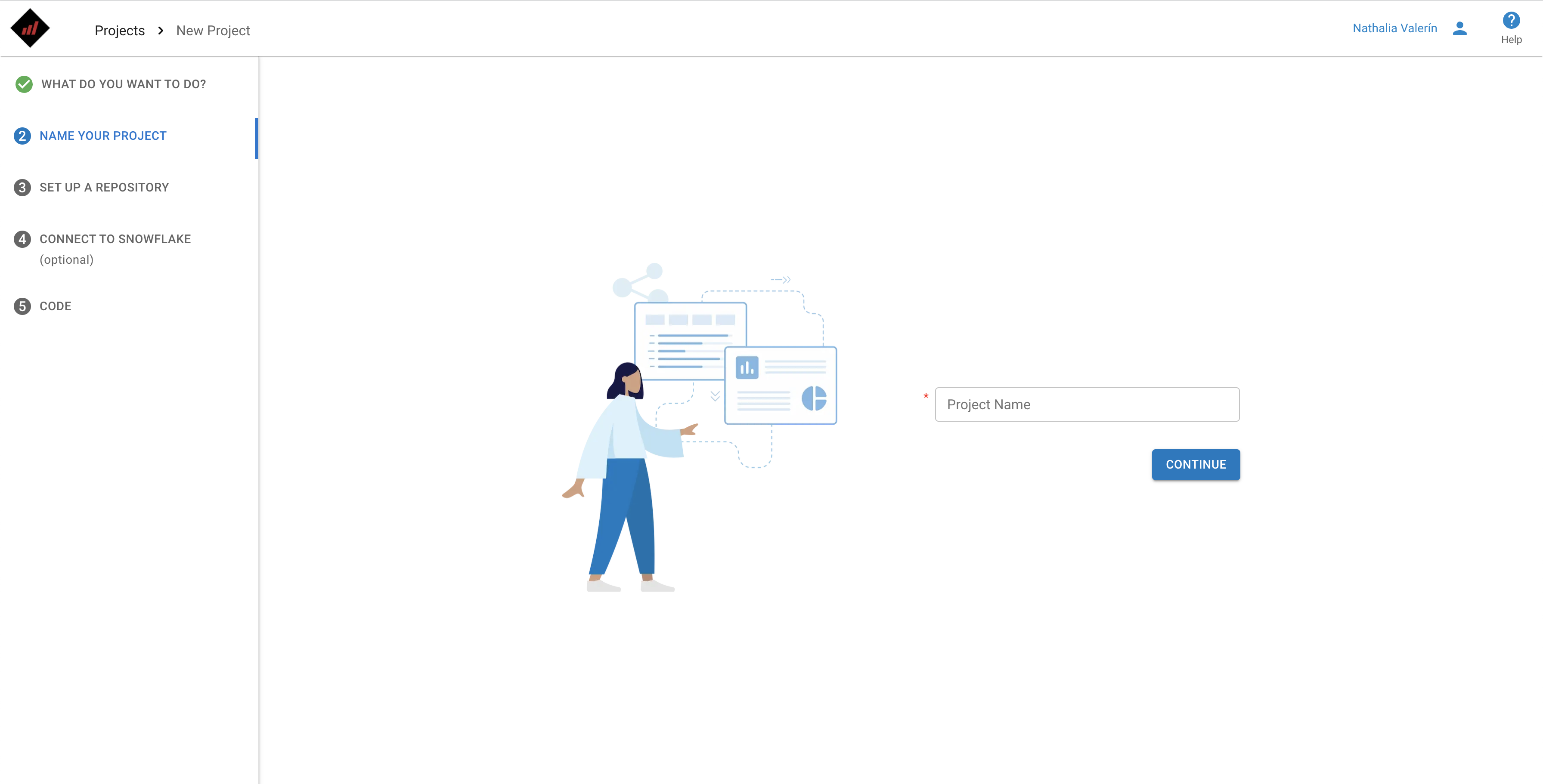
3\. Name your project.
4\. [Set up the project repository](/blackdiamond-studio-or-mobilize.net/blackdiamond-studio-documentation/bds-portal/creating-my-first-project/3.-set-up-repository.md). You can create a new repository in BlackDiamond Studio powered by GitLab or connect your existing GitHub repository.
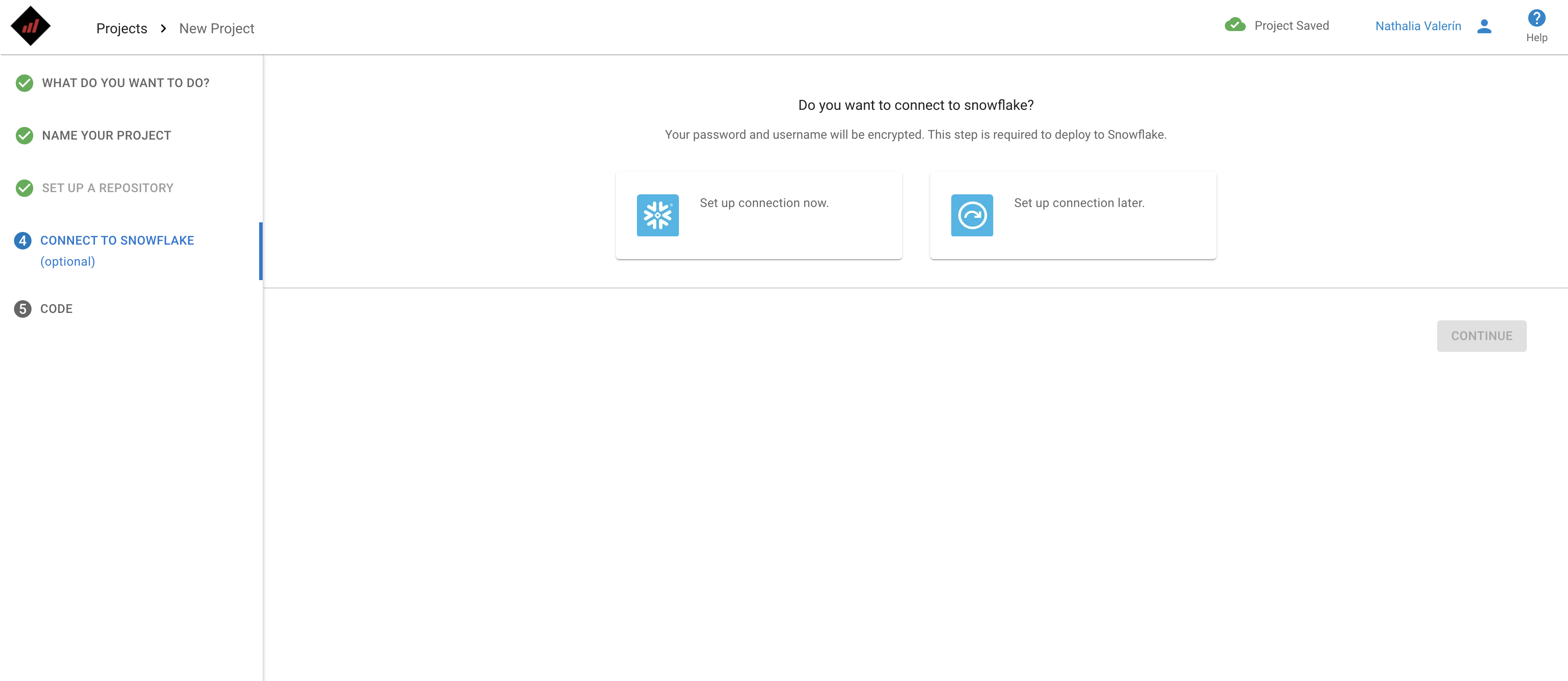
5\. As an optional step, [connect to your Snowflake account](/blackdiamond-studio-or-mobilize.net/blackdiamond-studio-documentation/bds-portal/creating-my-first-project/4.-connect-to-snowflake.md). This is required to deploy to Snowflake.
6\. Select the **Scala** **language** and select the template of your choice. This will populate your repository with Scala code that you can use to deploy to Snowflake with the Snowpark API.
7\. Click the **Finish setup** button.
8\. Click the **Open in IDE** button on the project page.

## Now that you are in the BlackDiamond Studio IDE, what do you want to do?
### 1. I want to use Snowpark with Scala
#### Getting started
1. In your project repository**,** you will find the **Main.scala** file that contains a basic example of how to create a Snowpark session, which then can be used to interact with the Snowflake account you should be connected to.
2. A Snowflake connection is required to use Snowpark with Scala. This connection can be set up when you create the project in the [web portal](https://bds.mobilize.net/), or it can be managed in the BlackDiamond Studio IDE with the SQL Tools extension.
3. The SQL Tools extension can be accessed by clicking on the cylinder icon on the Activity Bar (on the left side of the IDE).
#### **Creating and exporting a Stored Procedure / User Defined Function (UDF)**
1. Snowflake stored procedures and UDFs can be written in Scala and then exported to your Snowflake account.
2. Stored procedures and UDFs can be called or can be used during queries after being exported. They can be invoked from your SQL code or even using Snowpark.
3. If you want to create and export a Stored Procedure / UDF, follow these steps:
1. Make sure you have a build.sbt file.
.png?alt=media\&token=58577f65-a488-4ab9-a13b-ad3572cf6589)
2. Make sure you have already imported the builds with Metals. You can click on the Metals logo (an "M") on the activity bar on the IDE left bar and then click on **Import build.**\
%20copy.png?alt=media\&token=9bee24af-fb66-41b4-bf60-bb1854071174) .png?alt=media\&token=6bee97e6-f970-4d94-a0e5-f47d32e2ee25)
3. Right-click on the **build.sbt** file and then click on **Black Diamond: Export Scala UDF**. This will create a template file called **UDF-Export-Snowflake-Scala.sql**, located in the **target** folder. \
%20copy%202.png?alt=media\&token=78b4de14-7d56-4179-854f-af4ebbd8613c)\
%20copy.png?alt=media\&token=e61e126c-e9ef-4d72-a254-a2c6132431e8)
4. Replace the placeholders in the **UDF-Export-Snowflake-Scala.sql** template file with the actual values that you want to use. If you are creating and exporting a UDF, you can ignore or remove section 3.1, since it is used for creating a Stored Procedure. Likewise, if you are exporting a Stored Procedure, you can ignore or remove section 3.2, since it is used for creating a UDF.
5. After filling the placeholders, you can run the SQL commands. Left-click on the **UDF-Export-Snowflake-Scala.sql** and then click on **Black Diamond: Deploy**. This will execute the SQL script and create the UDF/Procedure. \
%20copy%203.png?alt=media\&token=72fbee7b-5a72-4550-8530-e365d9c22f53)
6. You can reorganize the template and change it in order to create multiple functions/procedures with the same script.
### 2. I just want to use Scala, I do not need Snowpark
#### Getting started
* An example of how to write a "Hello World!" program on Scala is given at the beginning of the **Main** object, in the **Main.scala** file.
* You can code just like you would normally with Scala.
* You can remove the Snowpark code if you don't need it (this includes the **UserDefinedFunctions.scala** and the **Procedures.scala** files, and the references to the Snowpark library in the **build.sbt** file).
#### Common Issues
1. Metals' Import Build command fails or an sbt command fails**.**
1. Check your project/build.properties. When working on the BlackDiamond Studio IDE, your **project/build.properties** should look like this:\
\ \
\
This is because **sbt** has a bug which prevents **sbt** commands from working on certain environments, where **Unix Domain Sockets** cannot be created. A fix for this bug has been submitted, but a version with said fix has not been released yet. Currently, the best option is to use version **1.7.0-M3** (a custom build) that is installed in the BlackDiamond Studio IDE.
2. BlackDiamond: Export Scala UDF fails.
1. Make sure that your project is building correctly.
2. If your project is not building correctly, the template for the creation of the UDF/Procedure will not be generated.
3. The creation of a **UDF** or **Stored Procedure** fails.
1. Make sure that your function/procedure follows the guidelines for the creation of Scala UDFs.
2. [Learn more about the capabilities and limitations of Scala UDFs](https://docs.snowflake.com/en/developer-guide/snowpark/scala/creating-udfs.html)




 \
\
This is because **sbt** has a bug which prevents **sbt** commands from working on certain environments, where **Unix Domain Sockets** cannot be created. A fix for this bug has been submitted, but a version with said fix has not been released yet. Currently, the best option is to use version **1.7.0-M3** (a custom build) that is installed in the BlackDiamond Studio IDE.
2. BlackDiamond: Export Scala UDF fails.
1. Make sure that your project is building correctly.
2. If your project is not building correctly, the template for the creation of the UDF/Procedure will not be generated.
3. The creation of a **UDF** or **Stored Procedure** fails.
1. Make sure that your function/procedure follows the guidelines for the creation of Scala UDFs.
2. [Learn more about the capabilities and limitations of Scala UDFs](https://docs.snowflake.com/en/developer-guide/snowpark/scala/creating-udfs.html)
\
\
This is because **sbt** has a bug which prevents **sbt** commands from working on certain environments, where **Unix Domain Sockets** cannot be created. A fix for this bug has been submitted, but a version with said fix has not been released yet. Currently, the best option is to use version **1.7.0-M3** (a custom build) that is installed in the BlackDiamond Studio IDE.
2. BlackDiamond: Export Scala UDF fails.
1. Make sure that your project is building correctly.
2. If your project is not building correctly, the template for the creation of the UDF/Procedure will not be generated.
3. The creation of a **UDF** or **Stored Procedure** fails.
1. Make sure that your function/procedure follows the guidelines for the creation of Scala UDFs.
2. [Learn more about the capabilities and limitations of Scala UDFs](https://docs.snowflake.com/en/developer-guide/snowpark/scala/creating-udfs.html)