# How fix Solution when have been added website from filesystem without project file

**Conversion tool migration aborted.**

When migrating a webforms solution it is possible to experience an error related to a project with an invalid empty extension.&#x20;

<table><thead><tr><th width="194">Error</th><th>Message</th></tr></thead><tbody><tr><td>WFMAP0013</td><td>Cannot convert projects with extension . Please remove the project with extension from the solution you want to convert and try it again.</td></tr></tbody></table>

### When this error happened?

This happens when a website is added to a solution from a filesystem directory.

Step 1: Select add website

<figure><img src="/files/4pWoNHCyWOvow2RDCXBU" alt=""><figcaption><p>Add existing website</p></figcaption></figure>

Step 2: Select the directory from filesystem

<figure><img src="/files/Zvj71OoZnr3hMk3hQL8b" alt=""><figcaption><p>Select directory for website</p></figcaption></figure>

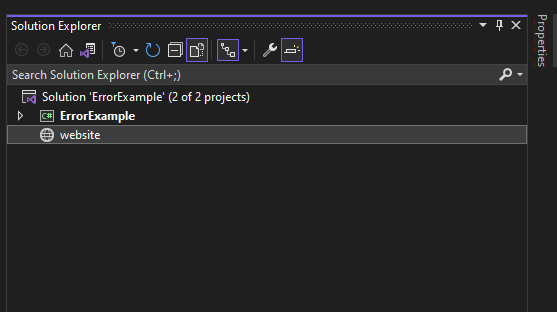
Step 3: WebSite is added to solution

<figure><img src="/files/iF25A45a2YY5UjPBsBiy" alt=""><figcaption><p>WebSite added</p></figcaption></figure>

### How to Fix?

Step 1: Remove the existing website from solution

<figure><img src="/files/a4RxaaLXXS4MWfvmdm3w" alt=""><figcaption><p>Remove website</p></figcaption></figure>

Step 2: Add new project (This will be used as a template for the existing website)

<figure><img src="/files/DbrIXqjvDEuv37PYtrW4" alt=""><figcaption><p>Add new project</p></figcaption></figure>

Step 3: Select new Web Application

<figure><img src="/files/wWHEDwrhp7tLXeotJwOc" alt=""><figcaption><p>Select Web Application</p></figcaption></figure>

Step 4: Configure the project with a different name of the existing folder with the website files in it.

<figure><img src="/files/71uNriXQhahfuqq6tSoY" alt=""><figcaption></figcaption></figure>

Step 5: Create the WebForms project

<figure><img src="/files/Q6ga8NIvy9hg5SXJ3CA1" alt=""><figcaption><p>Create the WebForms Application</p></figcaption></figure>

Step 6: Rename the created project with original website name

Step 7: Remove the project from the solution.

Step 8: Copy the generated csproj file to the original website directory

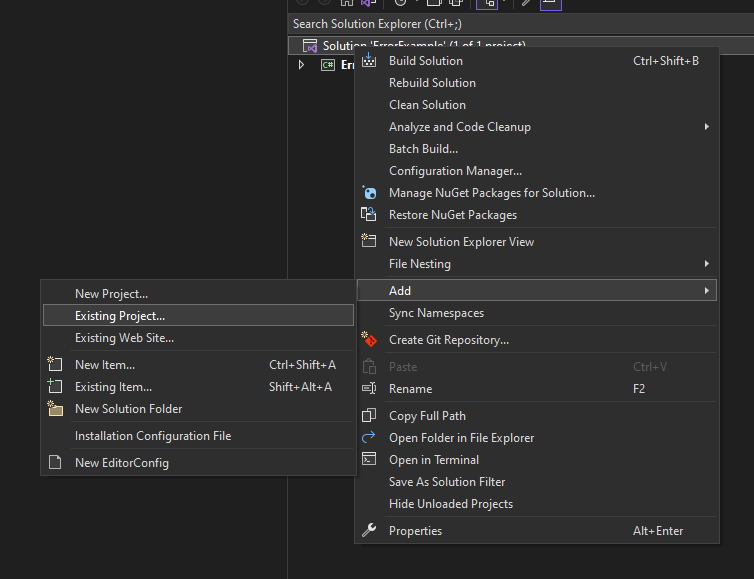
Step 10: Add the existing project in the original website directory to the solution

<figure><img src="/files/dV67tyqmB0BmRC7qmz3z" alt=""><figcaption><p>Add the existing project</p></figcaption></figure>

Step 11: Select option in solution explorer Show all Files

<figure><img src="/files/1LoMiEHPL3WFHqwnwOvp" alt=""><figcaption><p>Show all files</p></figcaption></figure>

Step 12: Include the files to the project and exclude the ones that are not going to be part

Step 13: Add the needed references to the project. (Can use as reference the ones in the solution file, that exist for the original website)

<figure><img src="/files/gVJ64LDSkkLBBqfCKUm9" alt=""><figcaption><p>Solution File References</p></figcaption></figure>

Step 14: Compile and try to migrate


---

# Agent Instructions: Querying This Documentation

If you need additional information that is not directly available in this page, you can query the documentation dynamically by asking a question.

Perform an HTTP GET request on the current page URL with the `ask` query parameter:

```
GET https://docs.gapvelocity.ai/webmap/webforms/errors-and-troubleshooting/how-fix-solution-when-have-been-added-website-from-filesystem-without-project-file.md?ask=<question>
```

The question should be specific, self-contained, and written in natural language.
The response will contain a direct answer to the question and relevant excerpts and sources from the documentation.

Use this mechanism when the answer is not explicitly present in the current page, you need clarification or additional context, or you want to retrieve related documentation sections.