> For the complete documentation index, see [llms.txt](https://docs.gapvelocity.ai/byteinsight-documentation/llms.txt). Markdown versions of documentation pages are available by appending `.md` to page URLs; this page is available as [Markdown](https://docs.gapvelocity.ai/byteinsight-documentation/guides/how-the-byteinsight-application-works-with-c-code.md).
# How the ByteInsight application works with C# code
This is a summary of how the application works when analyzing a folder with one or more C# solutions. This lightweight evaluation allows the user to scan a folder with one or more solutions in the same folder, and the results will be adjusted and sorted based on the number of solutions found.
These are all the steps required to scan a C# folder:
* Run the ByteInsight application. Here you need to register an email address where the results will be sent.
* Select the path where the folder with the C# code is located:
* Start analysis:
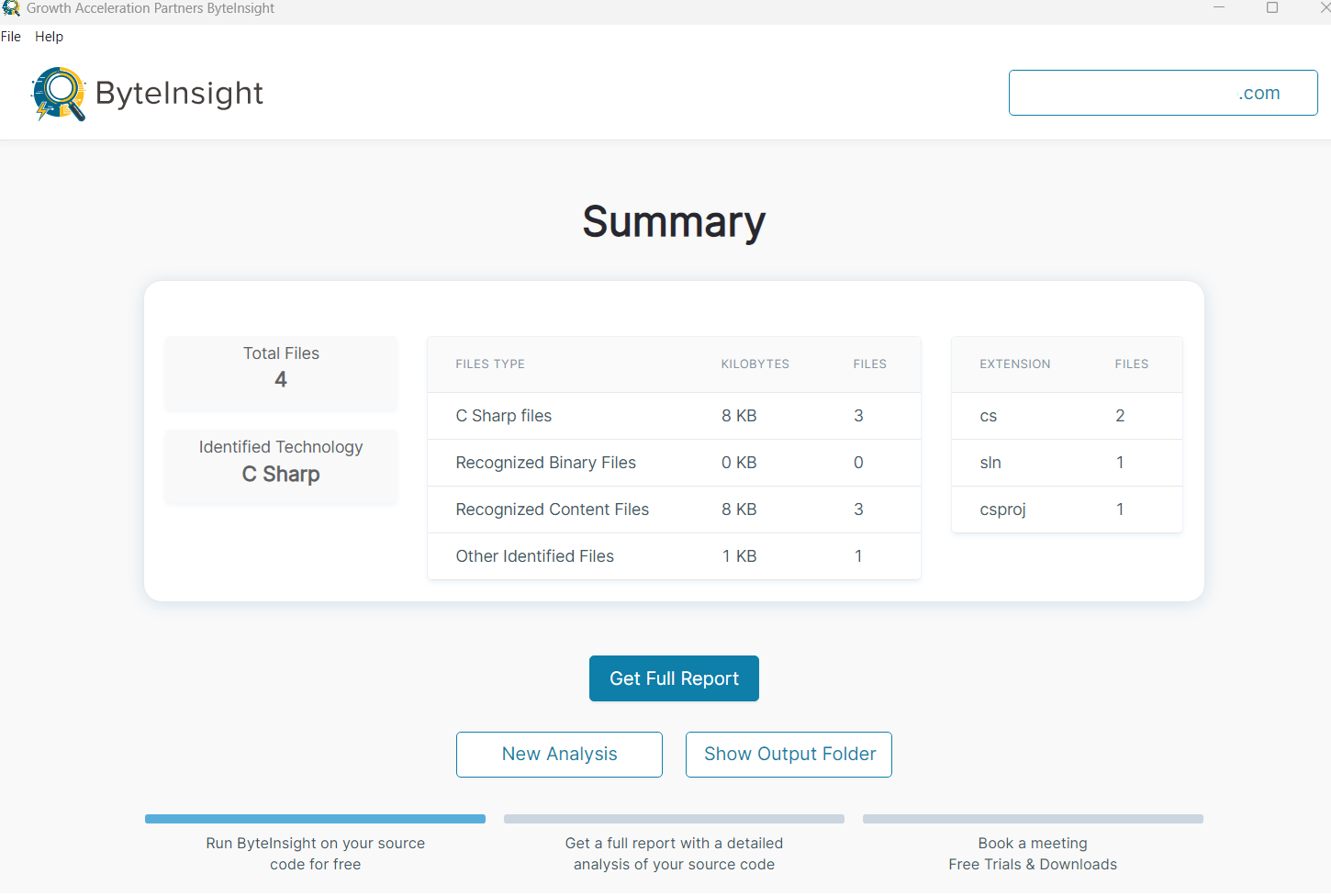
* Once the analysis is complete, you can view the results in the output folder to check the raw data:
* Open the results folder and you will find all the files generated with a summary of the combined solutions/projects scanned, as well as an individual folder with the name of the solution and the name of the project containing all the specific files. This is because a folder can contain multiple solutions with multiple projects, and the application attempts to organize the data as best as possible:
* In addition, you can click on the **“Get full report”** button and a new report will be displayed with a more comprehensive view of the data:
* You can scroll down the document and find a section with a tab called C# Projects, where you can view information related to:
* **Estimated Lines of Code**: Count of lines of code found for each specific attribute, taking into account: *Filetype, FileCount, CSharpCode, Designer, HTMLCode:, JavaScript, Comments and Blanks.*
* **Controls Identified**: All C# controls found in the folder and subfolders grouped by the solution and the project they belong to.
* **Libraries Identified:** All C# libraries found in the folder and subfolders grouped by the solution and the project they belong to.
* **PMEs Identified:** C# inventory data showing hierarchy based on solution/project, control/properties, and occurrences found during the scan.
* **Third-Party Identified:** All third-party controls found in the folder and subfolders grouped by the solution and the project they belong to.
* Finally, after generating the Full Report, an email will be sent to the registered address with the HTML report to download.