> For the complete documentation index, see [llms.txt](https://docs.gapvelocity.ai/vbuc/llms.txt). Markdown versions of documentation pages are available by appending `.md` to page URLs; this page is available as [Markdown](https://docs.gapvelocity.ai/vbuc/issues-troubleshooting/update-project-files-separately-on-newer-windows.md).
# Update Project Files Separately on Newer Windows
After the VB6 AI Migrator finishes converting the VB6 code to .NET ([VB.NET](http://vb.net/) or C#), it continues running a process to update the project files to newer .NET. But if you’re using older Windows versions and the VB6 AI Migrator is running on that machine, this process would not work after the migration completes.
It is highly recommended to run the VB6 AI Migrator on a newer Windows version to run the entire migration process with no issues; however, you can still proceed separately to the updating process on a newer Windows computer.
Below are the step-by-step instructions.
### Update project files
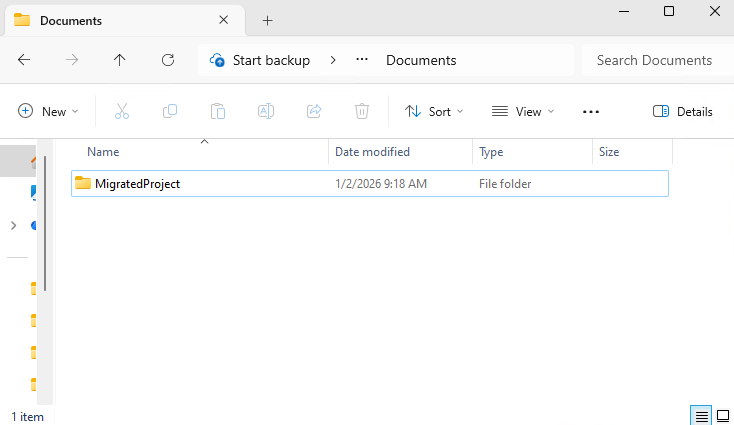
1. Create a new folder in a safe location (e.g. Documents).
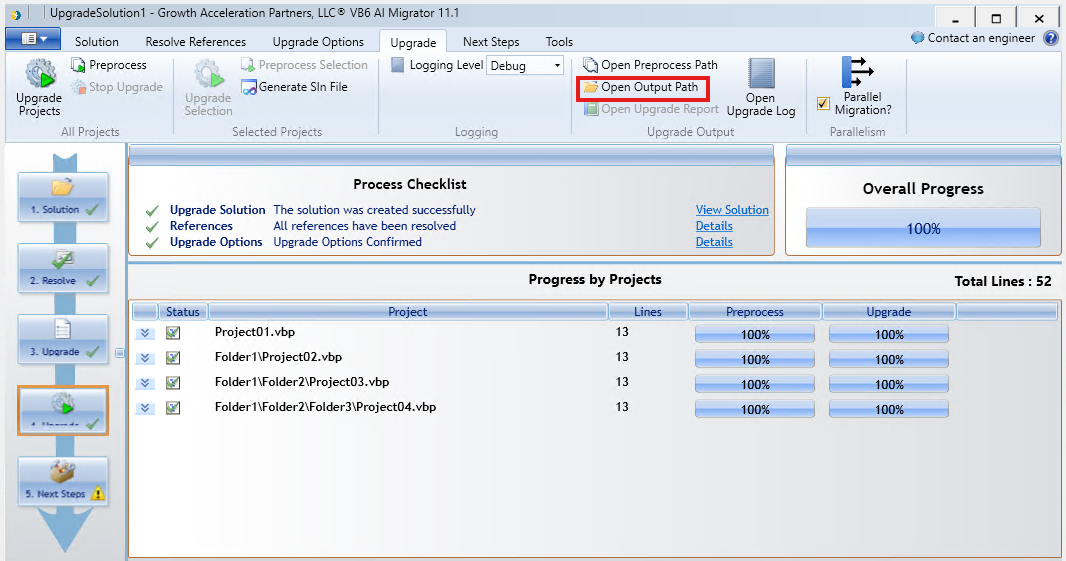
2. Go to VB6 AI Migrator, click on Upgrade -> Open Output Path.
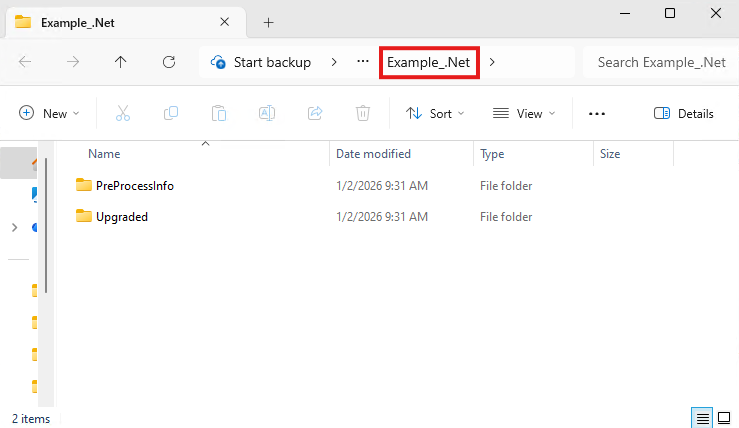
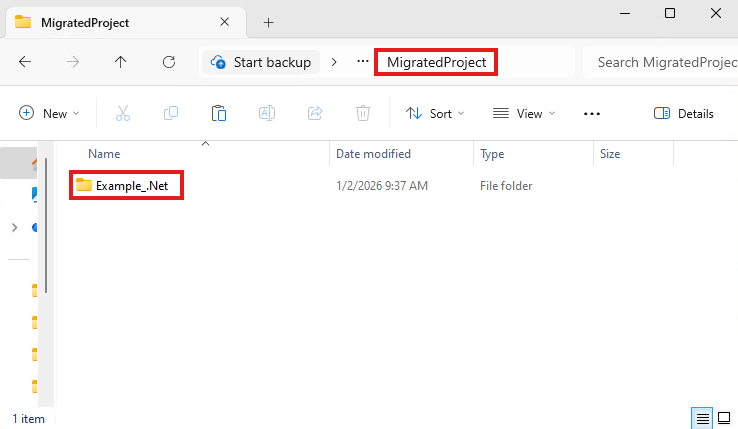
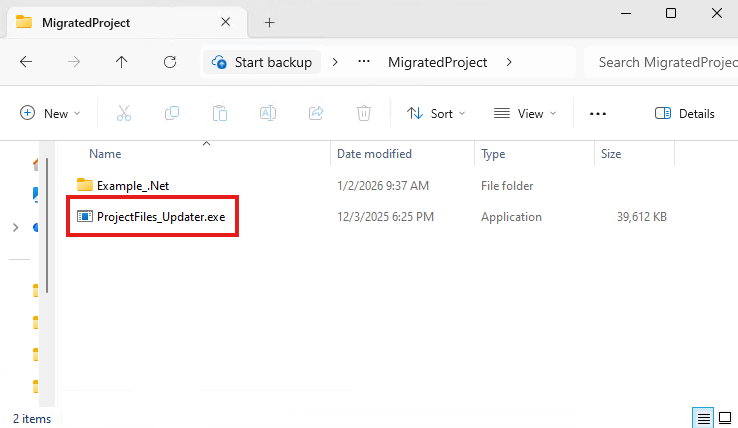
3. Copy the migration source folder (in our case Example\_.Net) and paste it in the folder that we created previously.
4. Copy the ProjectFiles Updater tool located in the VB6 AI Migrator installation folder and paste it in the folder that we created previously.
In our case we have it in “C:\Program Files (x86)\Growth Acceleration Partners LLC VB6 AI Migrator\Tools\ProjectFiles\_Updater”
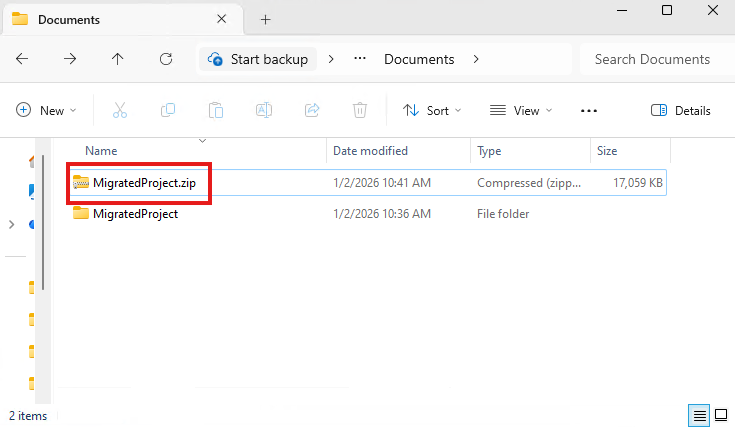
5. Now that we have all the necessary content, we are going to generate a .zip file of the folder we created previously.
6. Move the .zip file into the newer Windows computer. After that, unzip the file.
7. Open a command prompt with administrator privileges and navigate to the folder we extracted before.
8. Execute the following command:
ProjectFiles\_Updater.exe "\" True net10.0-windows False

9. Now the project files are updated and in the correct format.